
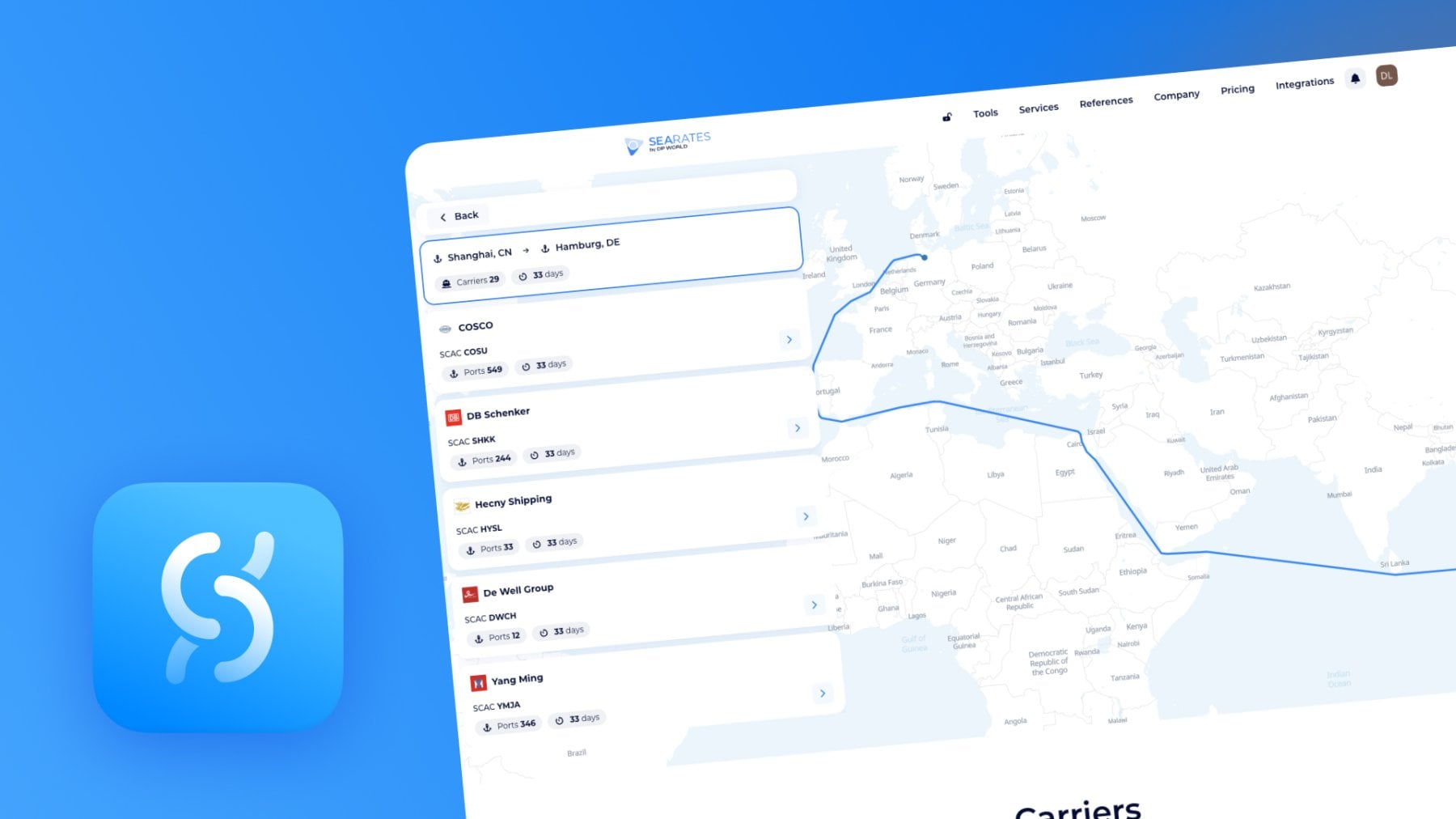
Checking which shipping lines operate on a route often means searching through separate carrier websites, port lists, and schedules. Carrier Directory keeps this information in one interface, where you can search by route or start with a particular shipping line.
Use the tool to find carriers between two locations, review the network of a selected carrier, open detailed sea and dry port pages, and continue to freight rates, tracking, schedules, fleet information, or demurrage and storage data.
In this guide, we will go through both Carrier Directory tabs and every available next step.
Start with the Carrier Directory
Open References in the SeaRates website menu and select the Carrier Directory tool. The References menu also gives access to World Sea Ports, Demurrage & Storage Calculator, and other shipping references for your logistics needs.
Carrier Directory opens with two ways to work with the database:
- By Route — find shipping lines operating between selected locations.
- By Carrier — select a shipping line and explore the ports in its network.
How to search for carriers by Route
Open the By Route tab when you need to understand which shipping lines are available for a particular direction.
Step 1. Add the departure & destination points
Enter the origin in the departure field and the arrival point in the second field and select it from the list.
You now have a defined point-to-point search. This is useful when preparing a new freight request, checking alternatives for an existing route, or confirming which carriers connect the required locations.
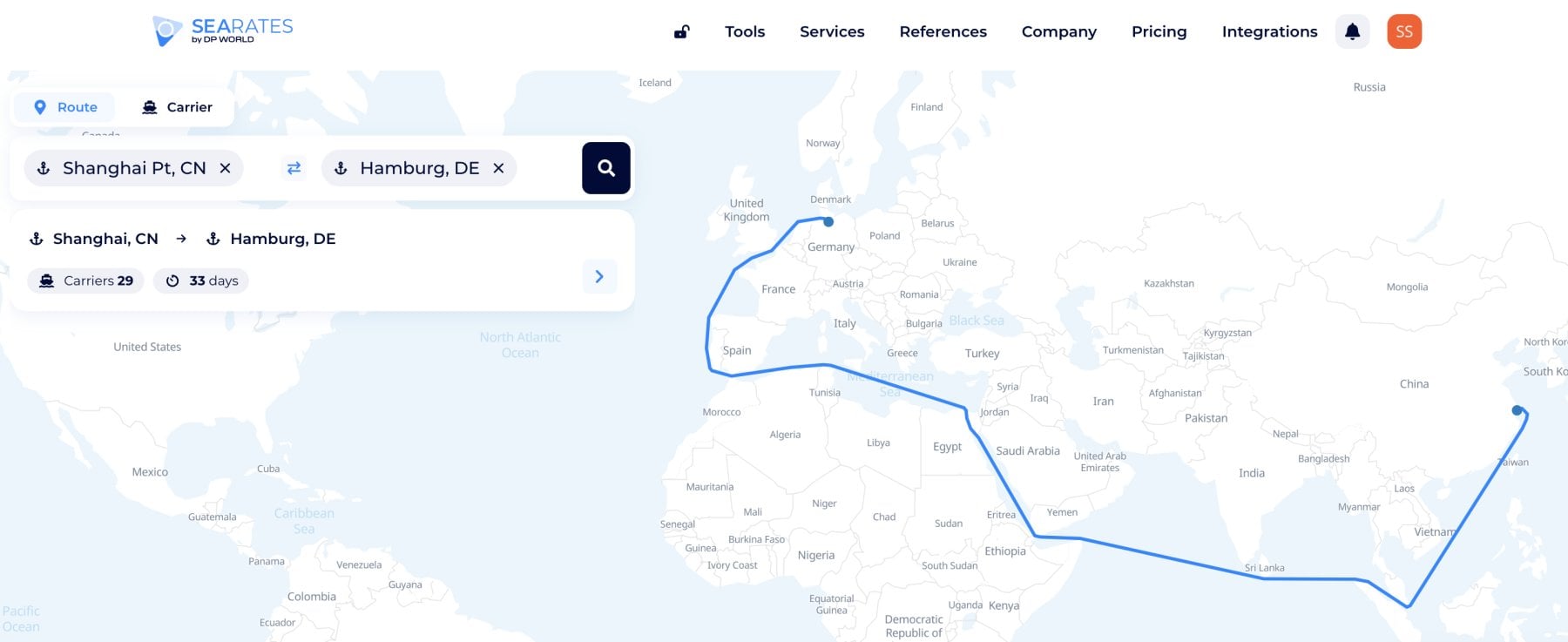
Click the search button to load the carriers associated with the selected route. The results allow you to review available shipping lines for your route without checking every carrier network separately:
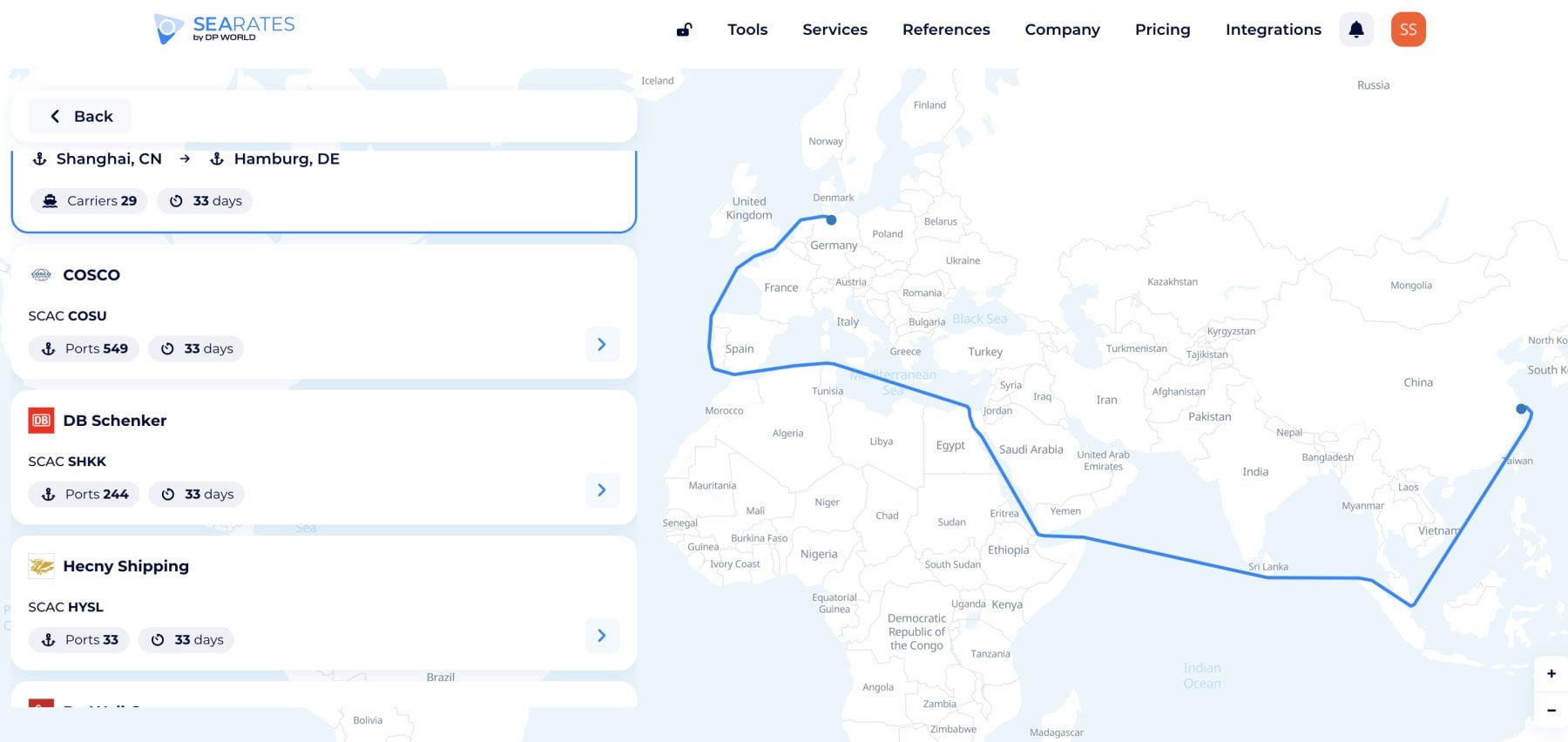
Step 2. Review the carrier results
Choose the shipping line you want to explore. Even without opening the card, you see the number of operated ports and transit time this carrier has for your route.
Step 3. Closer look at the carrier: Shipping lines directory
For example, after selecting the Evergreen carrier by operated ports and transit time for your Shanghai-Hamburg route, you will proceed to a full overview of Evergreen on the Shipping lines directory. This library includes the following insights about your career:
- Carrier's general details with available ports on the live world map to investigate;
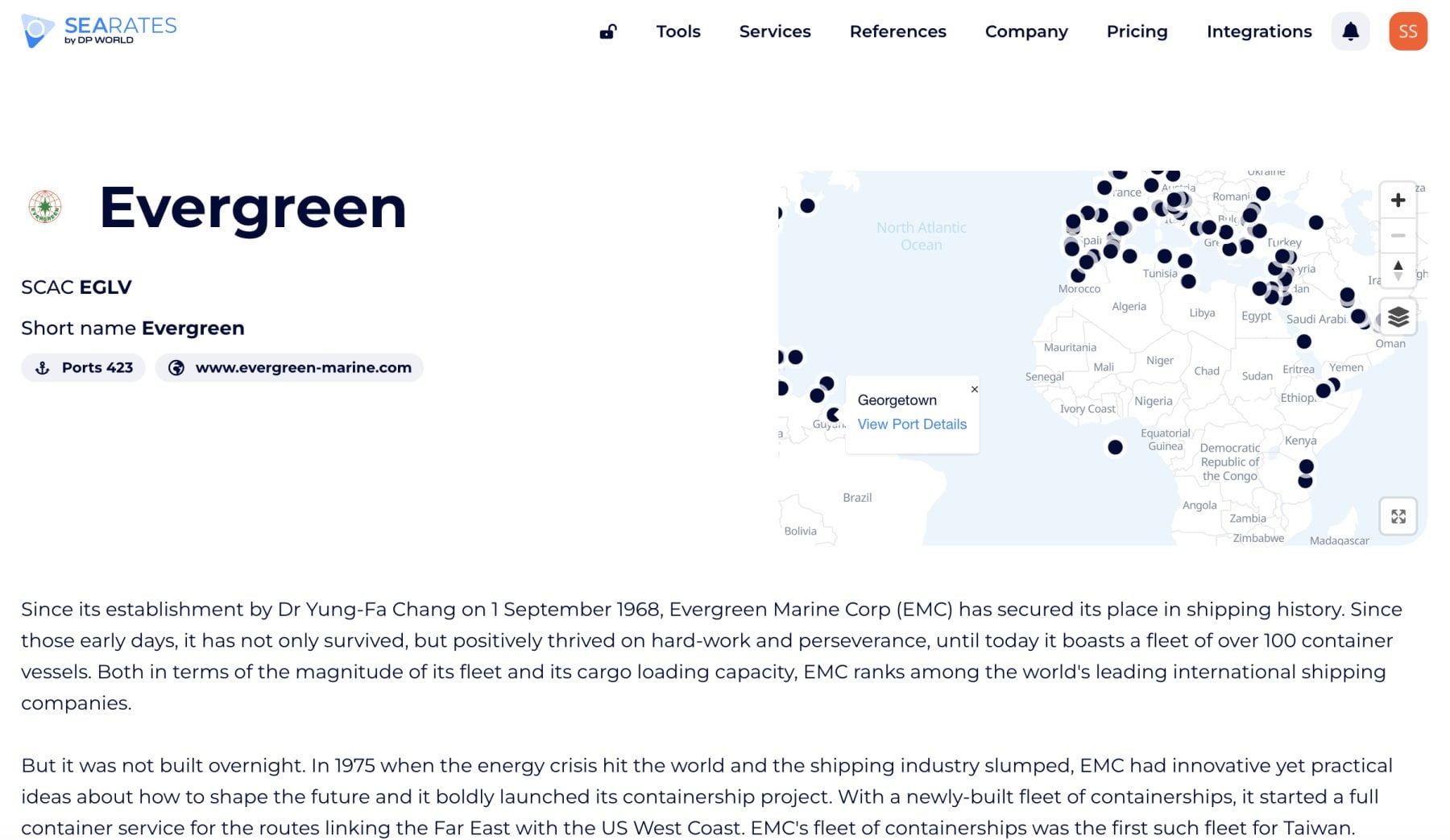
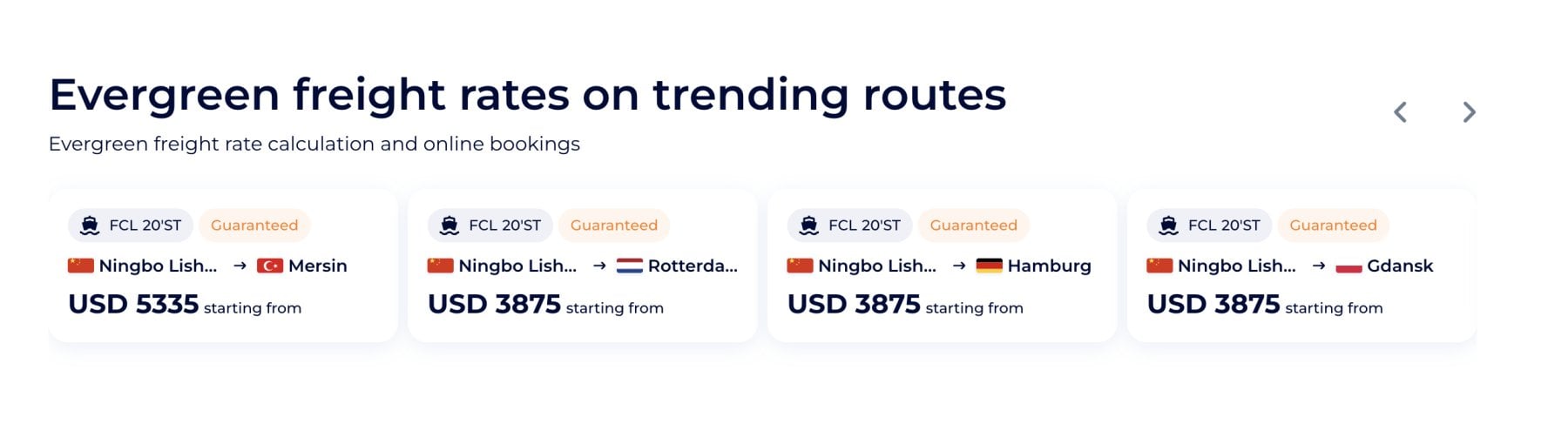
- Real-time freight rates with guaranteed tariffs provided by the carrier. Click on any tariff card to compare via Logistics Explorer for instant booking;
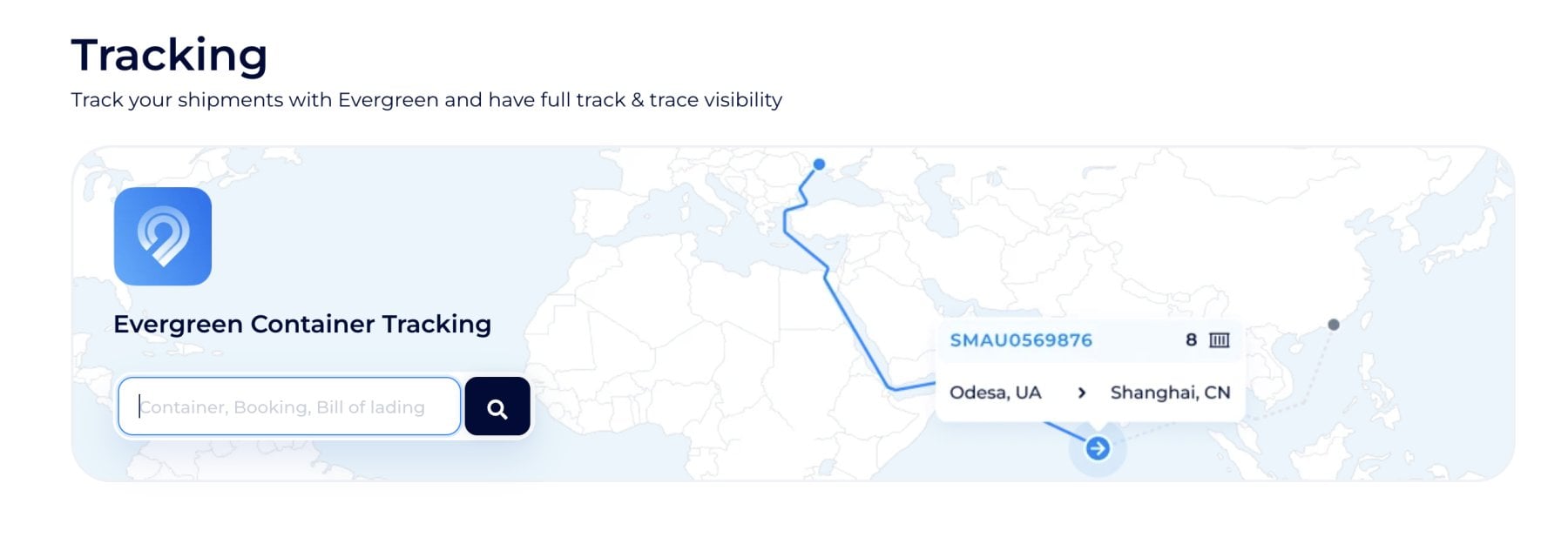
- Scroll down to track any shipments if you're already ship with the carrier to get live status in Container Tracking;
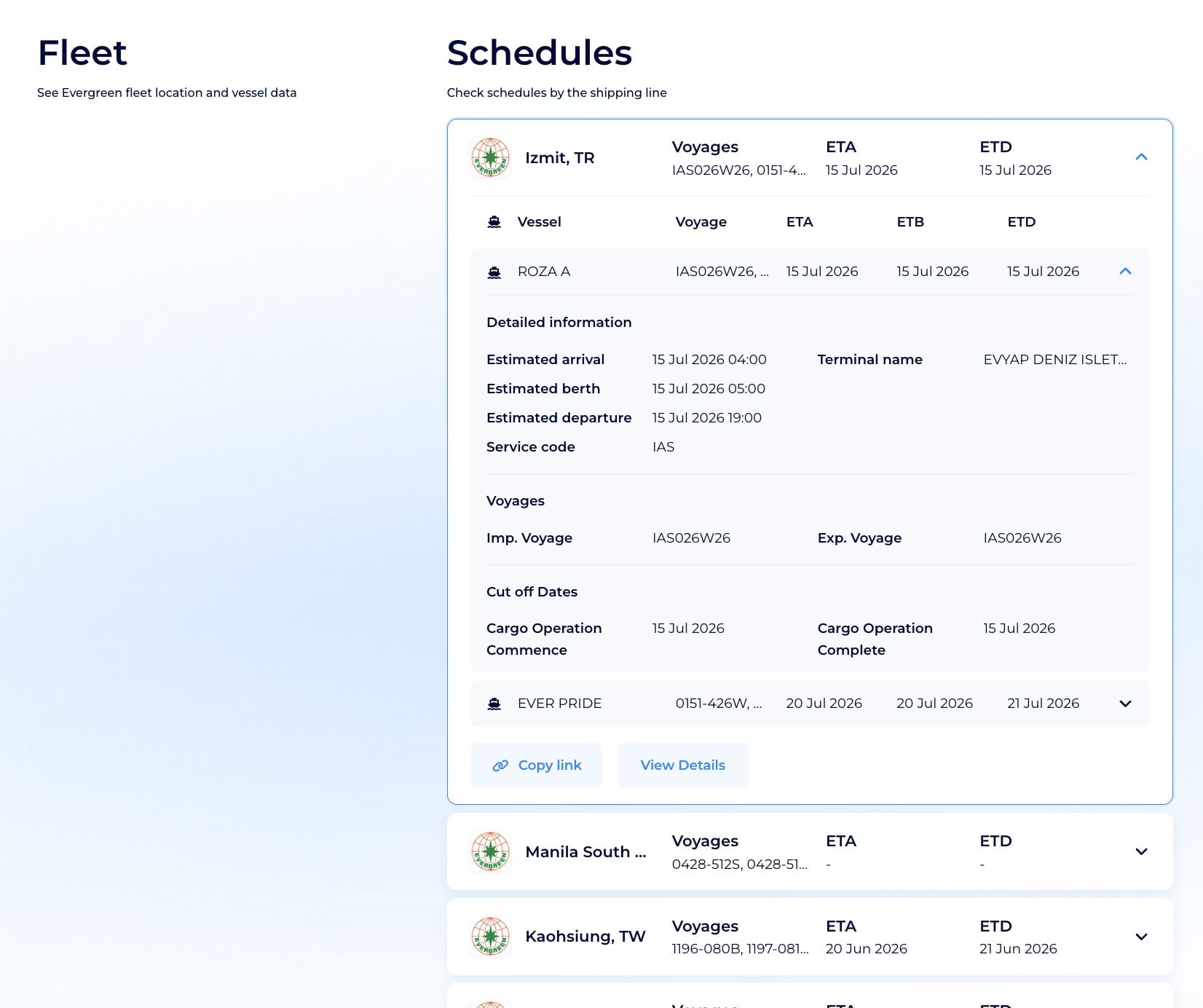
- Then, you can see fleet details and vessel locations, if available, and access the sailing schedules for the chosen carrier with deadlines in real-time mode to plan further shipments based on updates from Ship Schedules;
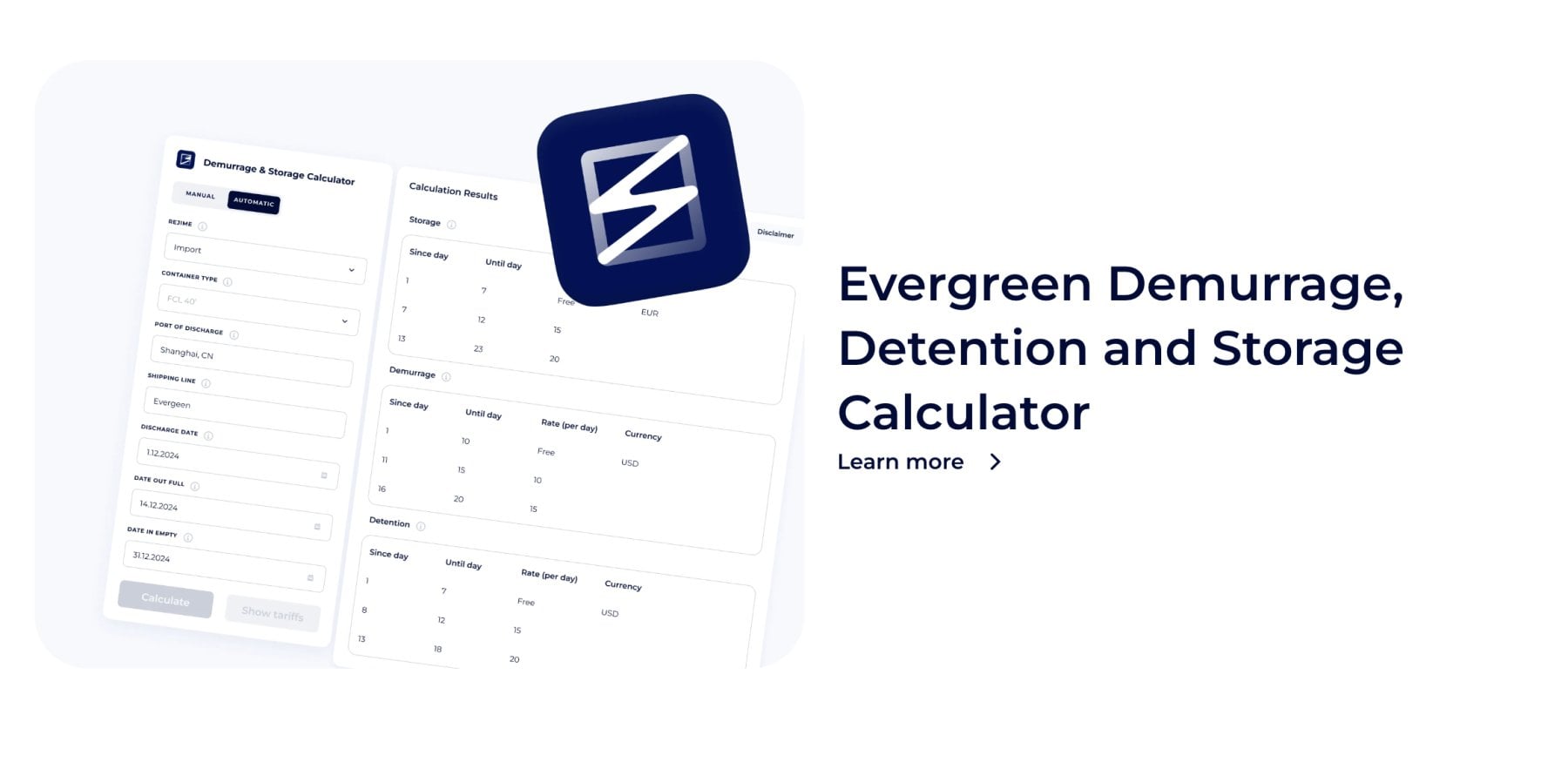
- Additionally, to avoid any sudden charges in your logistics planning, calculate demurrage, detention, and storage fees to know free days with particular ports. Check out the guide to know how to estimate all charges within minutes in auto mode:
How to search by shipping line
Open the By Carrier tab when you already have a carrier in mind or need to research its port network.
Step 1. Select the carrier
Choose a shipping line from the available list or use the carrier search field.
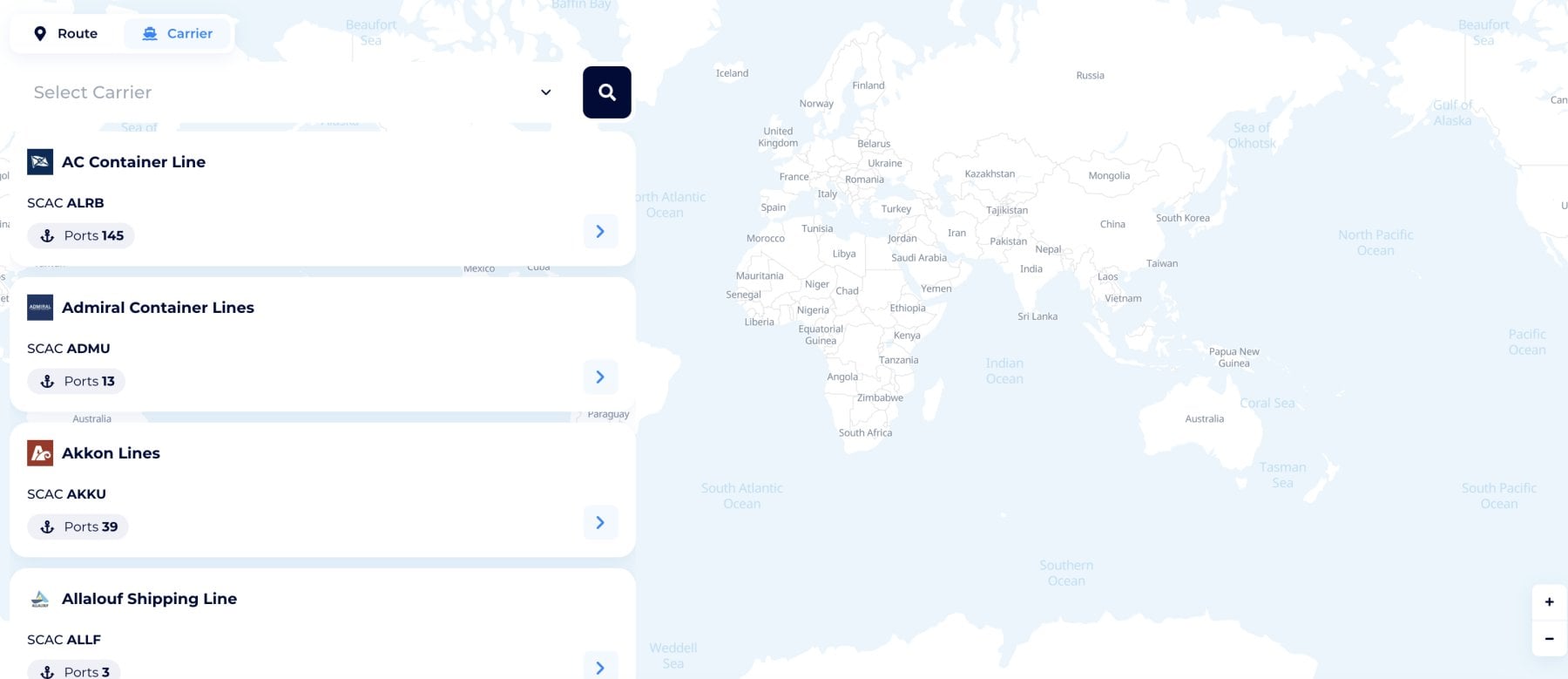
After selection, Carrier Directory loads the operational coverage connected with that line.
Step 2. Carrier overview
Explore further to review sea and dry ports operated by the chosen carrier. The carrier overview shows the number of sea ports and dry ports served by the selected line.
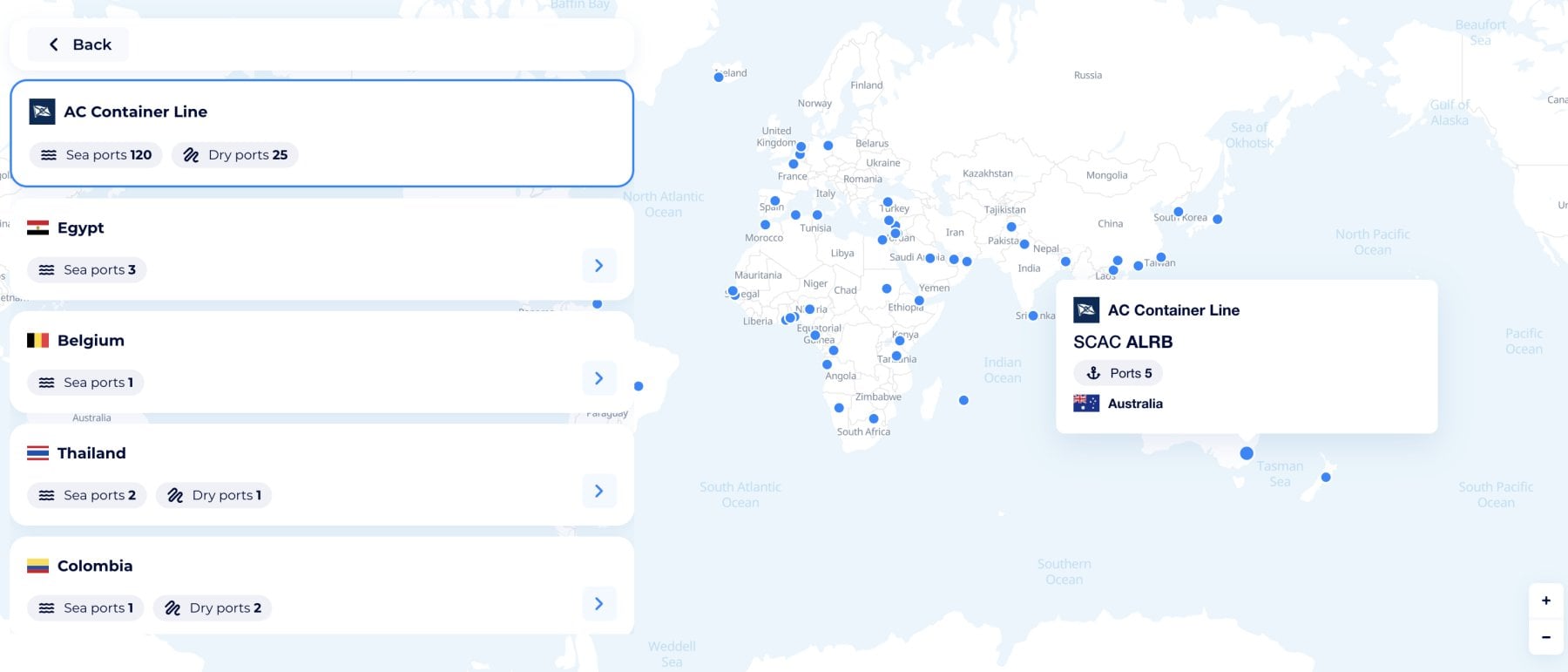
Sea ports support maritime vessel operations. Dry ports are inland logistics facilities connected with seaports through road or rail services. Reviewing both provides a more complete view of the carrier’s network beyond the coastline.
Step 3. Select a country
Choose a country to narrow the network and view the ports served there. Use it when checking whether a carrier is represented in a market, researching possible gateways, or planning the inland and maritime parts of a shipment.
Step 4. Review the port cards
Even without opening, you'll see operational details such as:
- port name
- TEU details
- maximum depth
- port type
- port size
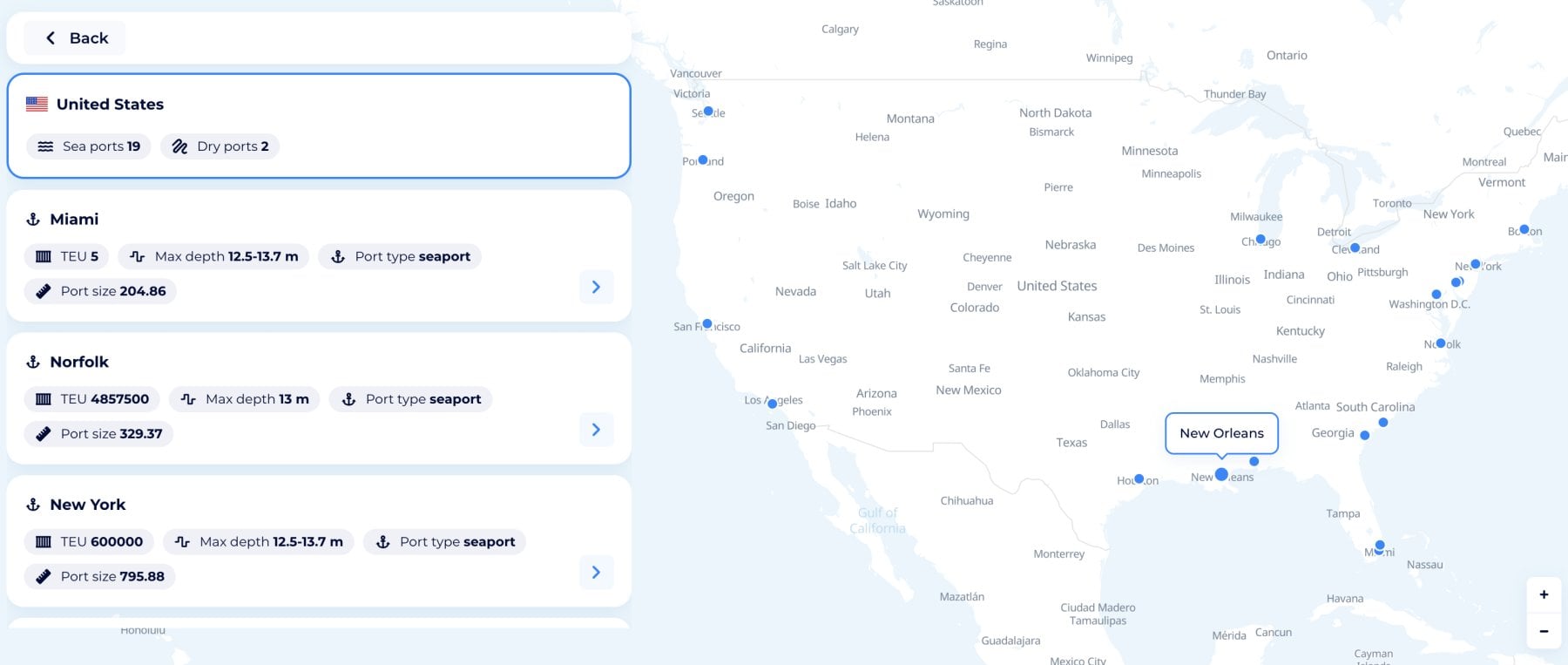
Use this overview to identify the relevant location before opening the full port page.
Step 5. Open a port page
Select a port card to access more detailed information. The port page can provide:
- the port’s detailed address, authority, and other location details;
- UN/LOCODE;
- terminals;
- geographical and operational details;
- connected shipping information.
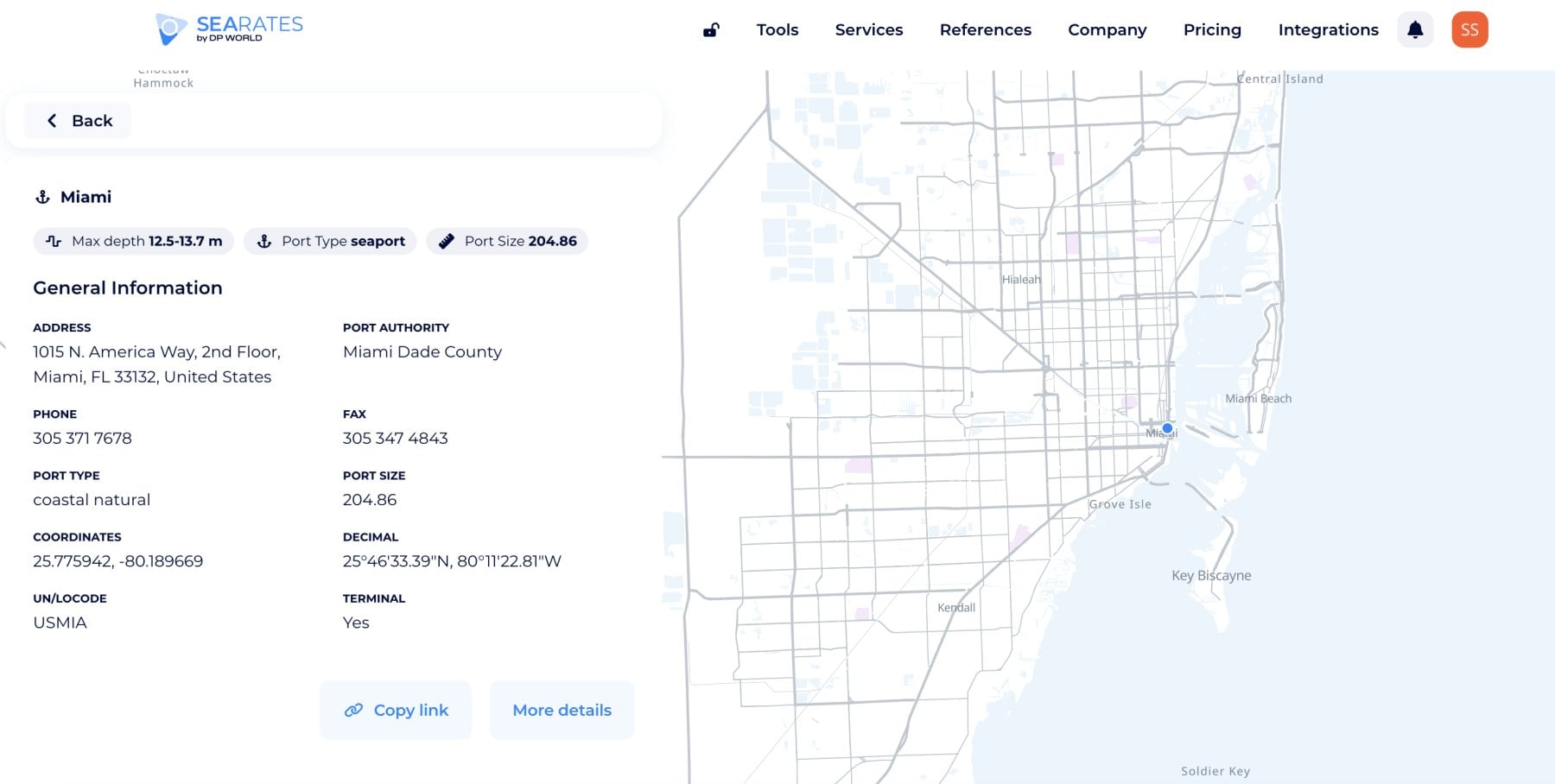
The UN/LOCODE helps distinguish locations that have similar names and is useful when preparing freight requests, schedules, or shipment documentation.
By clicking for more details, you'll explore the port's full overview available in the World Sea Ports database. Then, copy the link to share the port details with your customer, carrier, port operator, or partner.
Which Carrier Directory tab should you use?
- Use By Route when the locations are known but the available shipping lines are not.
- Use By Carrier when the shipping line is known and you need to check where it operates.
For example, when planning transportation from Istanbul to Boston, start with By Route to review the lines connected with that direction. When researching whether a selected line serves ports in Türkiye or the United States, start with By Carrier and open the relevant country and port cards.
Carrier Directory workflow for logistics teams
A practical workflow can look like this:
1. Search for shipping lines by route.
2. Review and filter carrier results.
3. Open a suitable sealine page.
4. Check its ports or fleet when additional research is required.
5. Open Ship Schedules to review possible sailings.
6. Move to Logistics Explorer to check freight options.
7. Use Container Tracking after receiving shipment references.
8. Check Demurrage & Storage conditions for the relevant carrier and port.
This keeps carrier research and the following shipment operations connected across SeaRates tools.
Get Carrier Directory for your platform
Carrier Directory is also available as a web integration or through an API connection.
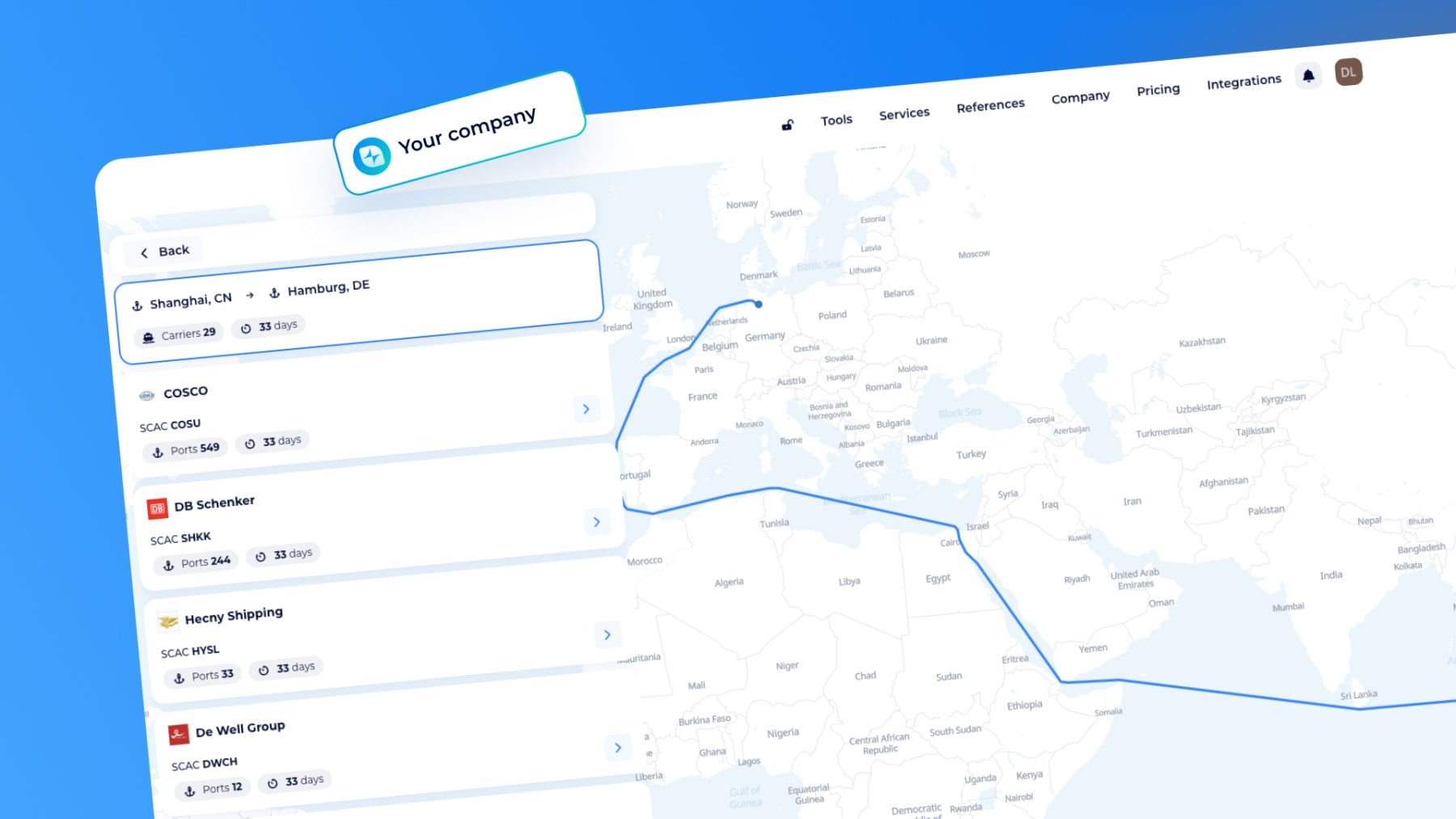
Web Integration to deliver a branded carrier search experience to your customers
Embed a white-label Carrier Directory directly into your website or customer portal, giving clients instant access to reliable carrier information without leaving your platform. Increase customer engagement, strengthen your brand, and provide added value with a fast, maintenance-free logistics tool.
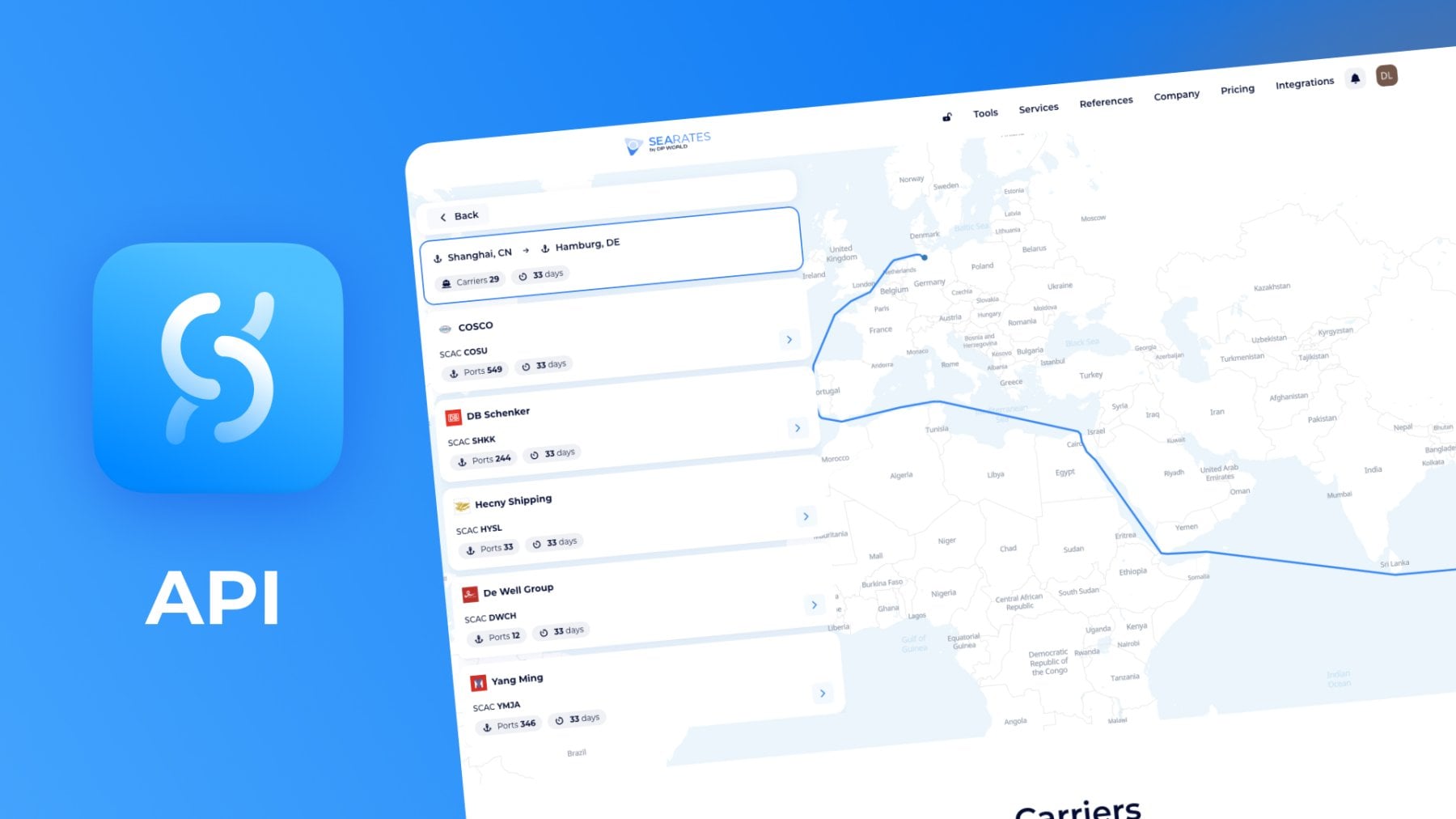
API to unlock carrier intelligence directly in your logistics platform
The Carrier Directory API delivers real-time access to verified ocean carrier data, enabling automated carrier lookup, route analysis, and operational insights within your CRM, TMS, ERP, or custom application. Reduce manual work, improve data accuracy, and accelerate logistics decision-making with seamless API integration.
Looking for a customized Carrier Directory solution? Share your request at [email protected], and we'll provide you with a tailored tool for your logistics and trade business.