
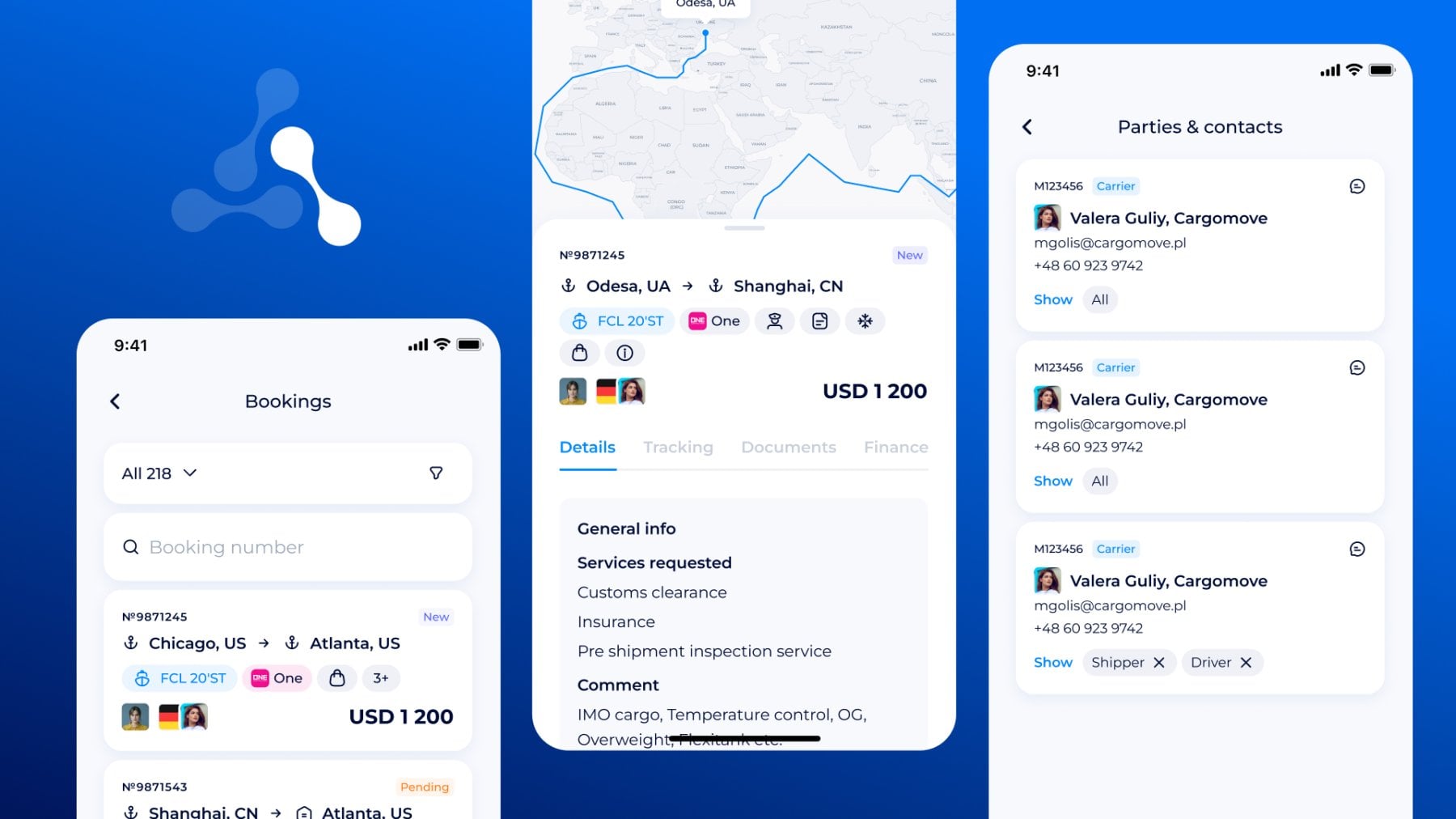
Freight operations do not always happen at a desk. Logistics teams need to check booking status during calls, confirm shipment details with partners, review route information, access contacts, and update transport data while working outside the desktop workspace.
We’ve brought the SeaRates Booking System to our Mobile app for logistics management for a smooth mobile workflow. You can manage freight bookings, check shipment routes, review booking details, track real-time timeline updates, manage parties and contacts, add transport information, and keep operational context connected in one freight booking app.
The SeaRates mobile app is available for iOS and Android, making it easy to access SeaRates tools from your phone.
What is the Booking System in SeaRates Mobile?
The Booking System in SeaRates Mobile is a mobile booking system for shippers, freight forwarders, logistics providers, shipment coordinators, and operational teams that need quick access to booking data from their phone.
It works as a mobile freight workspace for logistics providers and cargo owners, simplifying freight booking management with a clear overview of all the key details:
- booking numbers and shipment routes
- booking statuses
- cargo and container details
- carrier information
- parties and contacts
- timeline updates
- transport details
- documents and finance sections
- operational remarks
Instead of switching between email threads, spreadsheets, messengers, and desktop tools, open the shipment booking app and continue coordinating bookings on mobile.
Step 1. Open the Bookings section
Open the Tools section and choose the Booking system in the SeaRates mobile app to view all available bookings in one list.
Each booking card is a quick operational snapshot. It can show the booking number, origin and destination, shipment type, carrier information, booking status, related profiles, and total freight amount.
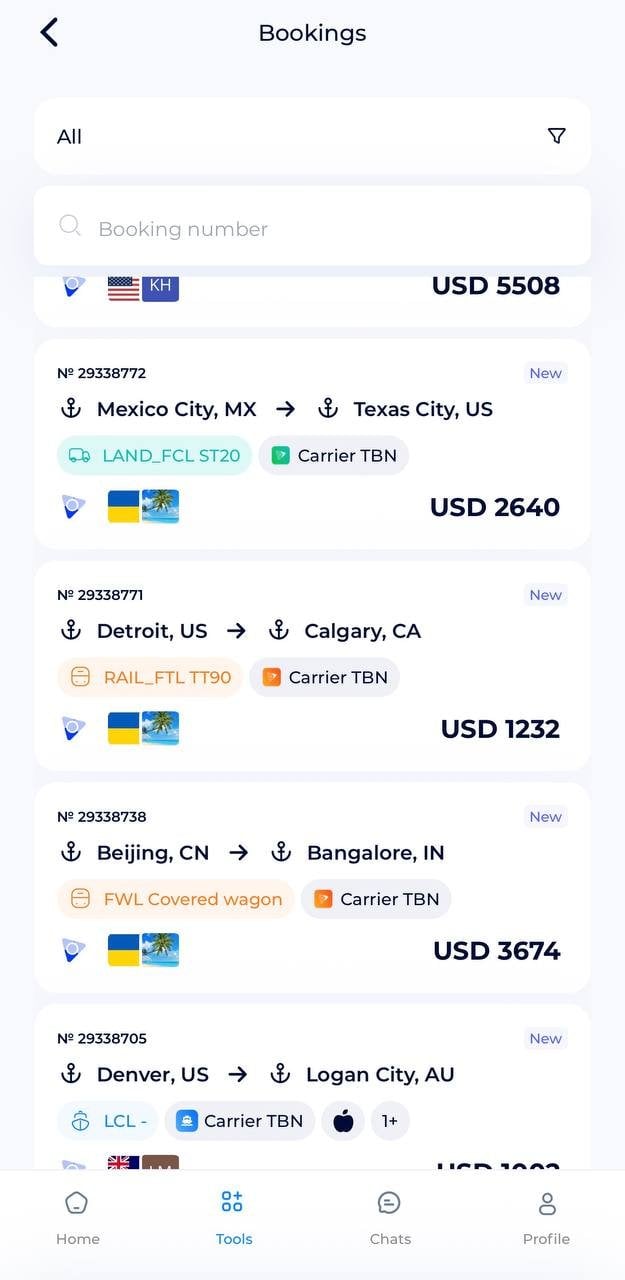
This is useful for managing daily logistics bookings, especially when teams need to understand what a shipment entails before opening the full booking page.
For example, a booking card can show the following:
- booking number
- route, such as Mexico City, MX → Texas City, US
- shipment type, such as LAND_FCL ST20, RAIL_FTL TT90, FCL 20’ Standard, or LCL
- carrier status, such as Carrier TBN
- booking status, such as New
- related profiles
- freight amount in USD
This structure supports booking management for multimodal shipments, including sea, land, rail, FCL, LCL, and other transport flows.
Step 2. Search and filter bookings
When teams manage many shipments, speed matters. The Booking system in the SeaRates mobile includes search and filtering tools to help users find the right booking faster.
Users can search by booking number and filter bookings by status categories such as All, In progress, Pending, and Archive.
So, you reduce time spent looking through long booking lists and focus on the shipments that require action.
❓ How can I find a freight booking by number?
Open the Bookings section and use the search field to find the shipment by booking number.
Step 3. Open booking details
Tap a booking card to open the full booking page.
The booking details screen turns a short booking card into a full mobile booking workspace. Review the route map, booking number, origin and destination, booking status, container type, carrier information, service icons, related profiles, and freight amount.
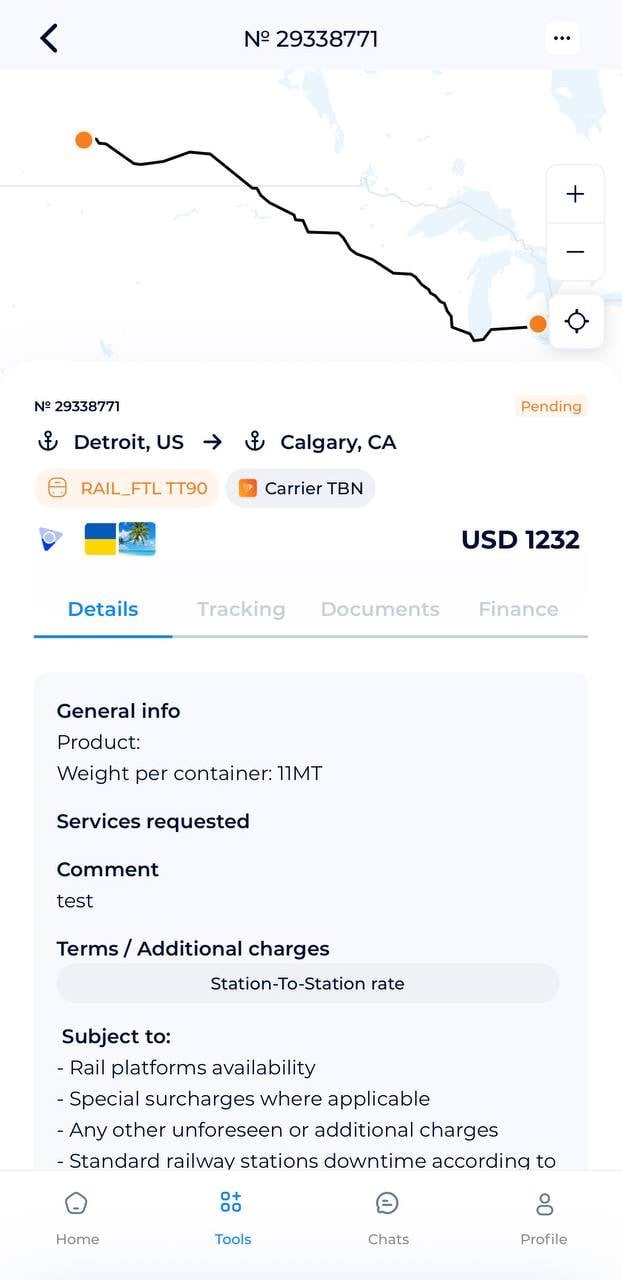
This is where the freight booking management app for logistics teams becomes useful for daily operations. A user can open one screen and quickly understand the current shipment context without checking several separate systems.
The booking details page can include:
- route map
- booking number
- origin and destination
- container or shipment type
- carrier information
- cargo and service indicators
- booking status
- freight amount
- Details, Tracking, Documents, and Finance tabs
❓ Can I view the live shipment route in a mobile freight booking app?
Yes. The booking details page includes a route map that shows the shipment route between the origin and the destination.
Step 4. Review general booking information
The Details tab keeps the main shipment information available from mobile.
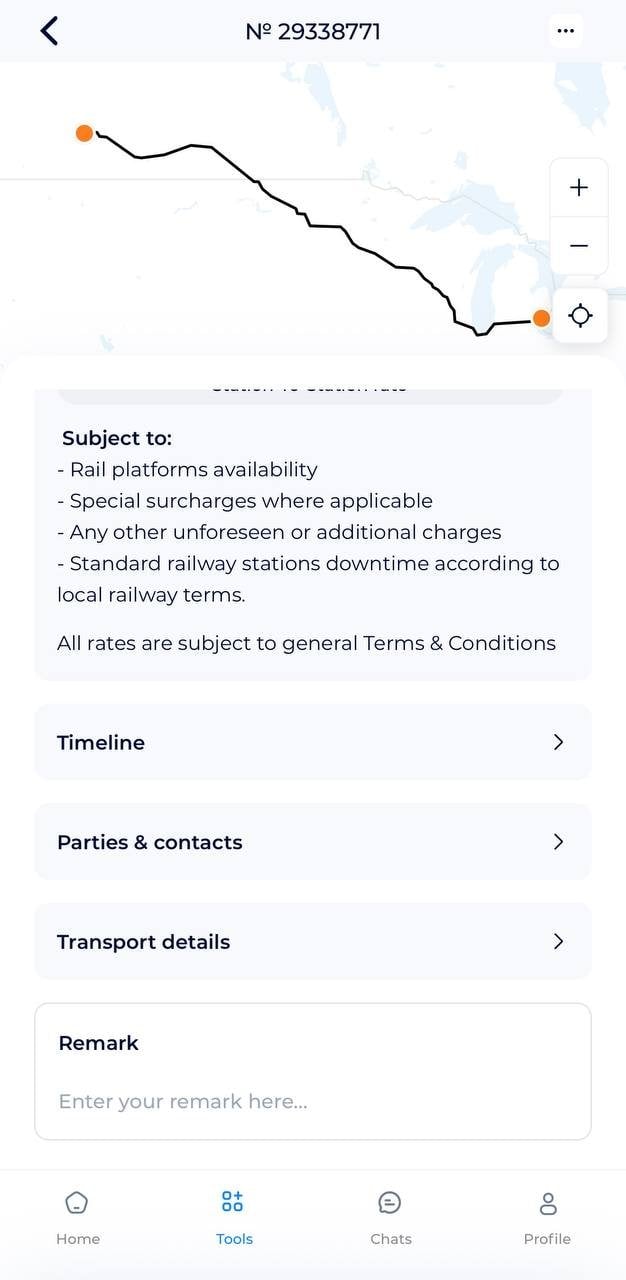
Users can review general booking data, product descriptions, cargo information, weight per container, requested services, comments, and booking conditions. For example, the Details tab can show product information, weight per container, insurance requests, and terms or additional charges (port-to-port, station-to-station, or airport-to-airport rates, etc.).
This helps teams check important shipment data before contacting customers, carriers, agents, or internal departments.
A logistics booking app for shipment coordination should not only show the booking number. It should keep the operational details close to the booking so the team can confirm cargo requirements and continue coordination with less back-and-forth.
❓ How do I check cargo details from my mobile?
Scroll down to open the Details tab on the booking card. It can show product description, cargo details, weight per container, requested services, comments, and booking conditions.
Step 5. Check terms and additional charges
Booking details can include terms and additional charge notes. These may cover cancellation fees, local taxes, currency exchange fees, bank commissions, unforeseen charges, dry port surcharges, and general Terms & Conditions.
Keeping these notes inside the shipment booking management system helps users avoid missing cost-related information during customer, carrier, or partner communication.
This is especially useful when teams need quick payment or charge visibility from mobile.
Step 6. Track booking updates in Timeline
The Timeline section shows booking events and system updates.
For example, Timeline can show when a booking has been created. This gives teams a simple activity history and helps them understand what has already happened in the booking workflow.
Step 7. Manage parties and contacts
The Parties & contacts section keeps role-based booking participants connected to the shipment.
Users can view contacts such as the following:
- Platform Owner
- Booker
- Rate Owner
- other operational profiles
Each contact card can include the contact name, company or profile name, email, phone number, role, and a Show action for more details.
Users can also add a new profile when another party needs to be connected to the booking.
❓ How do I manage shipment contacts in a booking system?
Open Parties & contacts to view role-based booking participants, including platform owner, booker, rate owner, support team, and other operational contacts.
Step 8. Add transport details
You can add transport details to your bookings via the mobile application for logistics.
The Transport details section allows users to add transport-related information directly from mobile.
Users can add:
- route
- transport ID
- transport name
- additional ID
- contact person
- company
- phone number
- container number
As a result, you keep transport details and container data connected to the booking and update operational information when you receive it, instead of waiting to return to the desktop workspace.
Step 9. Add remarks to the booking
The Remark field allows users to add operational notes directly to the booking. Remarks help teams keep shipment communication cleaner and make sure important details stay connected to the right booking.
Step 10. Use Tracking, Documents, and Finance tabs
The mobile booking page includes access to Tracking, Documents, and Finance sections.
- Tracking helps teams monitor shipment progress and booking-related movement.
- Documents keep booking-related files connected to the shipment.
- Finance gives users access to charge and payment-related visibility.
Tracking, Documents, and Finance are key parts of the mobile booking workspace. In the next articles, we will explore these tabs in more detail and show how they help logistics teams manage shipment updates, booking documents, and financial visibility.
❓ Who needs a mobile booking management app?
A mobile booking management app is useful for freight forwarders, logistics providers, shipment coordinators, support teams, carriers, shippers, and partners who need quick access to booking information outside the desktop workspace.
The Booking System is also available in your Profile in the Virtual Office, through web integration, and API connection. To learn more about the full workflow, explore our detailed Booking System guide.
Manage freight bookings from your phone
SeaRates Mobile helps teams move from fragmented coordination to structured freight booking software for mobile operations — with booking visibility, shipment context, and operational data available whenever the team needs it.
Looking for a customized mobile app with booking management functionality? Share your needs at [email protected] or leave a request, and we'll provide you with a tailored solution for your logistics and trade business.